Graphical Launcher
LSW includes a one-shot graphical launcher built with Flet. It is designed for quickly choosing scan settings, generating one report, and closing rather than running as a permanent dashboard.
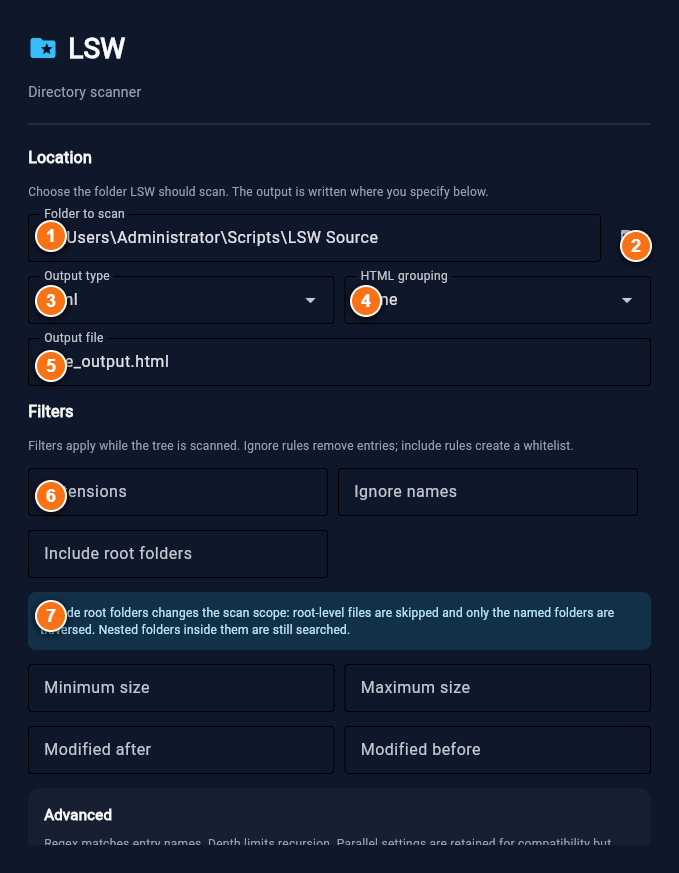
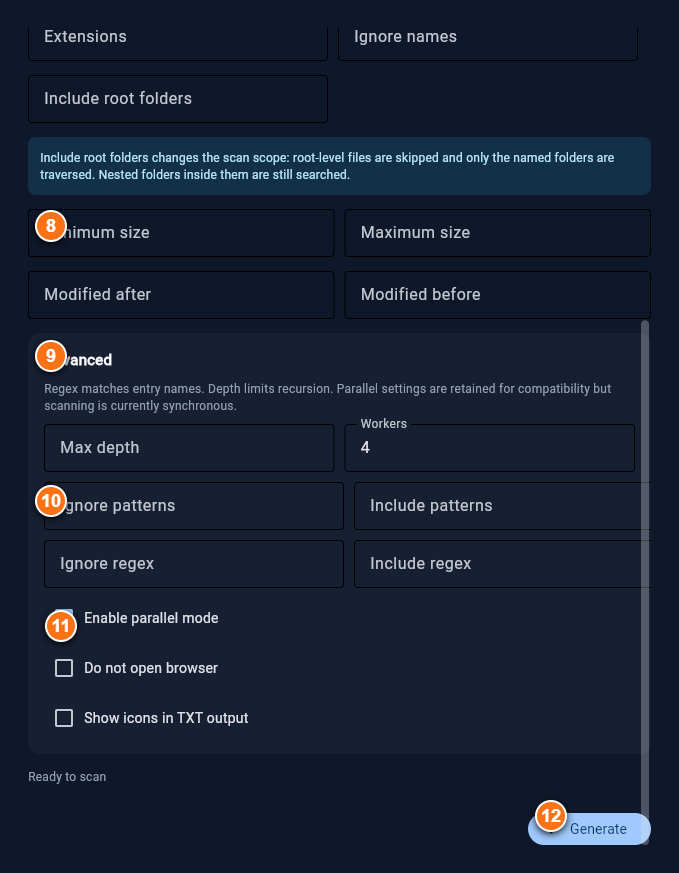
The launcher is vertically scrollable. The annotated captures below pair each part of the form with its legend so you can read the labels without scrolling back and forth. On narrow screens, Retype stacks each pair vertically.
Start the launcher
When installing from a package, Flet is installed automatically. For a local checkout, install LSW with:
py -m pip install .Then run:
lsw --guiThe normal command-line interface remains available as lsw. The package includes Flet so the GUI is ready immediately.
On first run, LSW also creates editable user defaults, presets, and .lswignore under %APPDATA%\\lsw on Windows. Existing files are never overwritten.
Workflow
- Choose the folder to scan with the folder button.
- Select an output type and, for HTML, an optional grouping mode.
- Set the output filename.
- Add filters if needed.
- Expand the Advanced section for regex, depth, worker, and behavior settings.
- Click Generate.
- LSW disables the form, scans in a background thread, and shows a progress bar while generation runs.
- After a successful export, the window displays the saved path briefly and closes automatically.
If validation or generation fails, the window stays open, re-enables the controls, and shows the error so you can correct it.
Main controls
Important include behavior
The Include root folders field is not a simple filename filter. When it has a value, LSW changes the scan scope:
- Root-level files are skipped.
- Only the named directories directly below the selected folder are traversed.
- Nested directories inside those selected roots continue to be searched.
- Use Include patterns or Include regex when you want to whitelist file names instead.
For example, with a selected folder containing src, tests, docs, and README.md, entering src,tests scans only src and tests; it does not include the root README.md or docs.
Standalone HTML reports
When the output type is HTML, the generated report is a snapshot. The report embeds its tree, metadata, analytics data, and chart rendering code. It does not need LSW, Python, Flet, the original folder, or a network connection after generation.
You can move, rename, copy, or send the HTML file independently. The paths shown in the report remain the paths captured at generation time, so a copied path may not exist on the recipient's computer even though the report itself continues to work.
CLI and dependency note
Flet is installed automatically with the PyPI package. CLI users can continue using:
lsw --path . --type jsonThe GUI dependency is present even when the graphical launcher is not used.
Why the GUI does not expose stdout/stderr
The --stdout and --stdout-only options are designed for command-line pipelines and parent applications that capture process streams. The GUI intentionally remains file-oriented:
- Choose an output filename in the form.
- Click Generate.
- Read the saved-path status message in the window.
- The window closes after a successful export.
All output types and scan filters are still available through the GUI. The GUI uses the same generation functions as the CLI, so it does not need separate stdout/stderr controls. Applications embedding LSW should use the CLI with --stdout-only; people using the launcher should use the GUI's saved-file workflow.