
Installation
System Requirements
This application is Windows-only. It uses WPF, NAudio (WASAPI), and Win32 P/Invoke for global hotkeys — none of which work on Linux or macOS.
Download
Pre-built Release
- Go to the Releases page
- Download the latest
TtsCommunicationTool.App.exe - Place it anywhere on your system (no installer required)
Prerequisites
Install VB-Cable
The app requires a virtual audio cable to route TTS audio into voice applications.
- Download VB-Cable (free)
- Run the installer
- Restart your PC if prompted
- Verify "CABLE Input" and "CABLE Output" appear in your Windows sound devices
Alternative Virtual Cables
Other virtual audio cables work too, including:
- VB-Cable (free)
- VB-Cable A+B (paid, multiple cables)
- Voicemeeter (advanced virtual mixer)
- Virtual Audio Cable (paid alternative)
Configure Voice Applications
In Discord, VRChat, or any voice app:
- Open Audio / Voice Settings
- Set Microphone Input to CABLE Output (VB-Audio Virtual Cable)
- Keep Speaker Output set to your normal headphones/speakers
First Run
When you launch the app for the first time:
- The app appears in the system tray (near the clock)
- The Settings window opens automatically
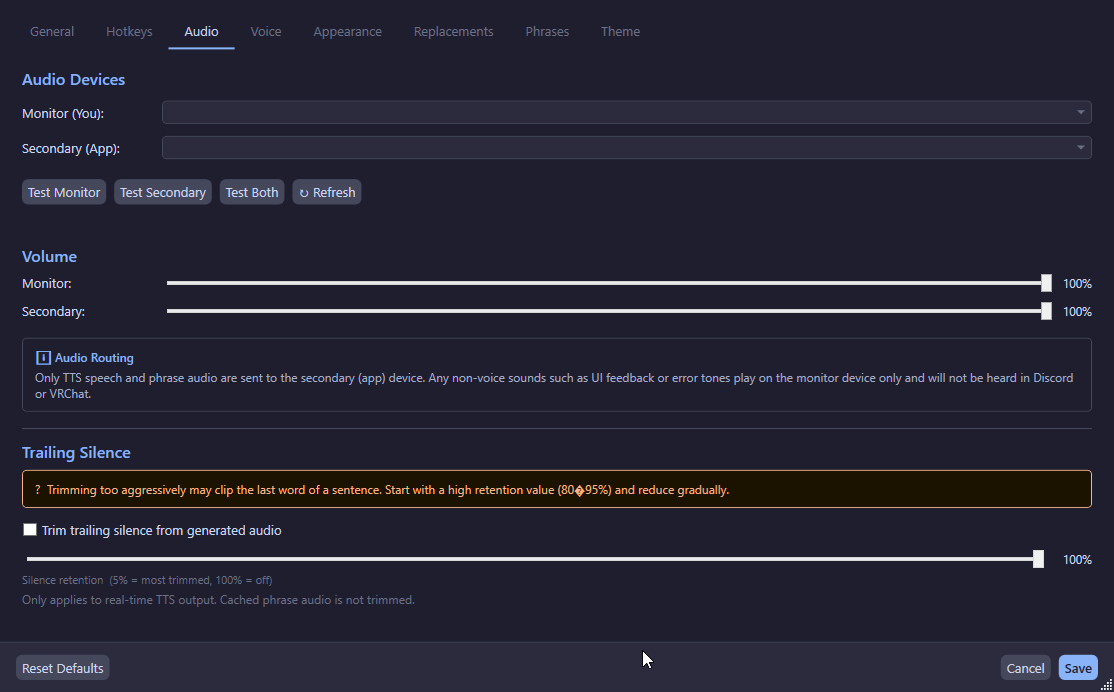
- Open the Audio tab:
- Select your Monitor Output device (headphones/speakers)
- Select your Secondary Output device (CABLE Input)
- Testing each output
- Confirming your overlay hotkey (default: Ctrl+Shift+Space)
- Save your settings
Updating
To update to a new version:
- Download the new executable
- Close the running app (right-click tray icon → Exit)
- Replace the old executable with the new one
- Launch the new executable
Your settings and phrases are stored in %AppData%\TtsCommunicationTool\ and are preserved across updates.