
Quickstart
Get from a fresh install to speaking your first message in under two minutes.
Step 1: Launch the App
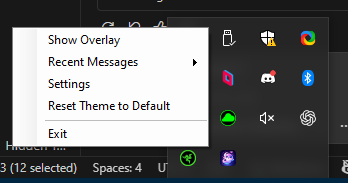
Run TtsCommunicationTool.App.exe. The app starts in the system tray.
Step 2: Configure Audio (First Run Only)
On first launch, the Settings window opens automatically:
- Monitor Output — Select your headphones or speakers
- Secondary Output — Select CABLE Input (VB-Audio Virtual Cable)
- Click Test Monitor to hear a test tone on your headphones
- Click Test Secondary to route a test tone through the virtual cable
- Click Save
If the Settings window doesn't open, right-click the tray icon and select Settings.
Step 3: Set Up Your Voice App
In Discord, VRChat, or your voice app:
- Open audio settings
- Set Microphone to CABLE Output (VB-Audio Virtual Cable)
- Keep Speaker as your normal output device
Step 4: Speak!
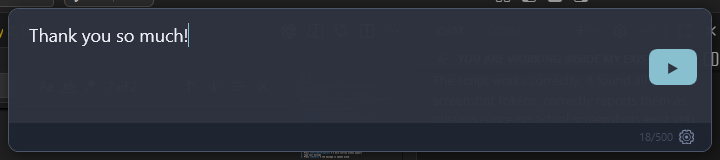
- Press Ctrl+Shift+Space — a dark overlay window appears
- Type your message
- Press Enter — the message is spoken aloud
Step 5: Stop Playback (If Needed)
Press Ctrl+Shift+Backspace to immediately stop any speech that's playing.