
Text Replacements
Text replacements automatically transform your input text before it's sent to the TTS engine. This is useful for expanding abbreviations, correcting common typos, or substituting words.
How It Works
- You type text in the overlay
- Before TTS synthesis, the
TextReplacementServiceapplies all enabled rules - The transformed text is sent to the TTS engine
- The original text in the overlay is unchanged
Managing Rules
In Settings → Replacements:
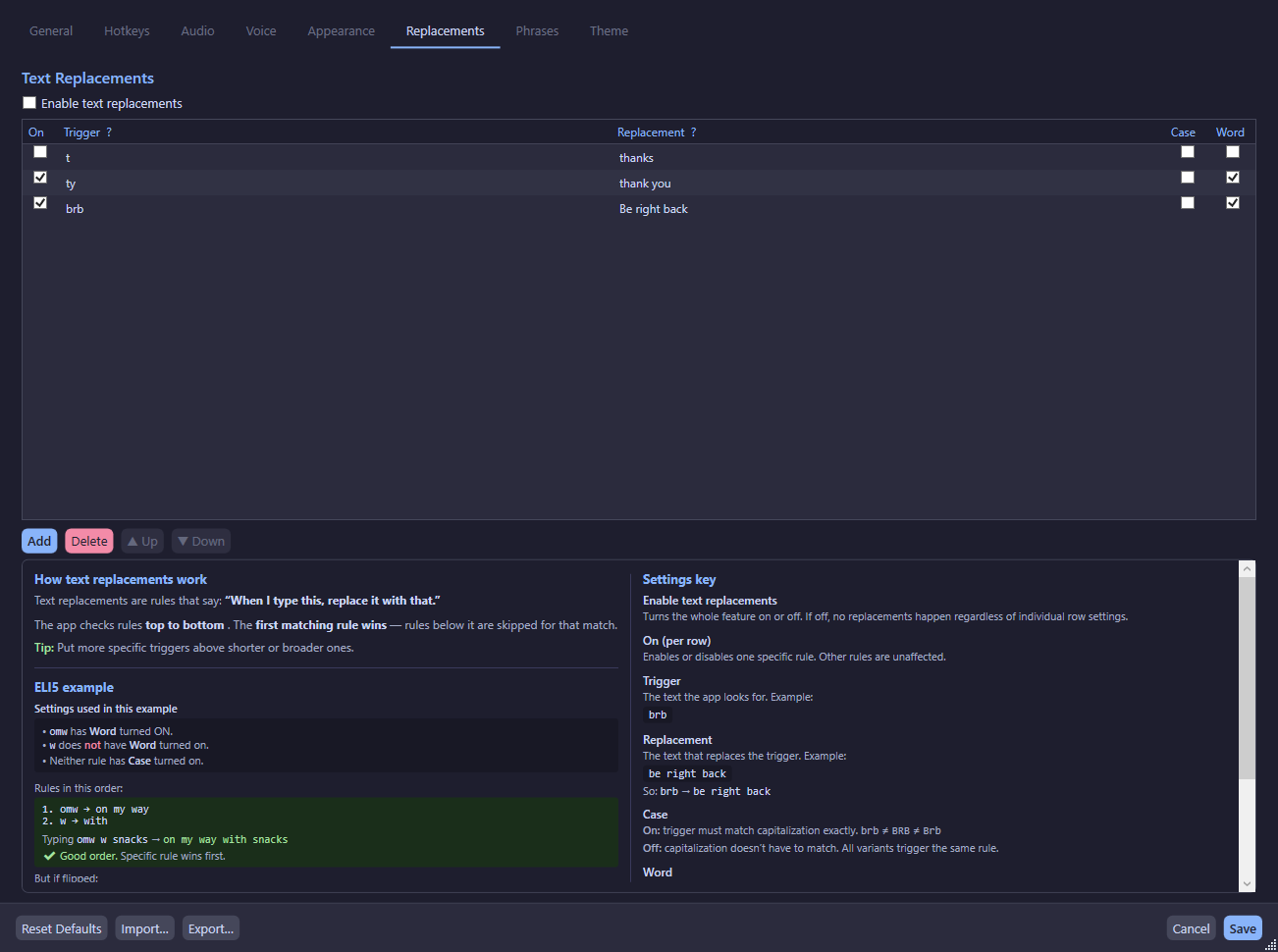
Rule Fields
Operations
- Add — Create a new replacement rule
- Delete — Remove a selected rule
- Import — Import rules from a JSON file
- Export — Export rules to a JSON file
Rule Processing
Rules are processed in a single pass:
- All enabled rules are sorted by their internal sort order
- Each rule finds all matches in the input text
- Earlier rules claim their match positions first
- Later rules skip any text that overlaps with already-claimed positions
- The output is built by walking through all substitutions in position order
Priority
Add important rules with lower sort order numbers so they take priority over overlapping matches from later rules.
Examples
Global Toggle
The entire text replacement system can be enabled or disabled with the Enable Replacements toggle at the top of the Replacements tab. When disabled, no rules are applied regardless of individual rule states.